Quarto: Introduction

FAIR & Reproducible Teaching with Quarto & Git
Course at University of Hamburg
Slides | Source

License: CC BY 4.0

10:00

Schedule

Day 1

Day Date Time Title
1 2026-03-20 09:30 - 10:00 Welcome & Introduction
1 2026-03-20 10:00 - 10:30 Quarto: Introduction
1 2026-03-20 10:30 - 10:45 Quarto: Presentations
1 2026-03-20 10:45 - 11:00 Git: Setup & Configuration
1 2026-03-20 11:00 - 11:15 Command Line
1 2026-03-20 11:15 - 12:00 Git: Basics
1 2026-03-20 12:00 - 13:00 Lunch Break
1 2026-03-20 13:00 - 14:00 Git: Remotes
1 2026-03-20 14:00 - 15:00 Git: Collaboration
1 2026-03-20 15:00 - 15:30 Quarto: Publication to GitHub Pages
1 2026-03-20 15:30 - 16:00 Git: Tags & Releases

This session: Quarto: Introduction

https://quarto.org

Learning Objectives

💡 You know what Quarto is and what it can be used for.
💡 You can create a new Quarto file and render it to HTML.
💡 You understand the basics of Markdown syntax (text formatting, headings, lists, links).
💡 You can add a YAML header to a Quarto file to configure title, author, and output format.
💡 You can integrate Quarto with Git by tracking .qmd files and ignoring generated output files.

Tasks

In this session, you will work on the following tasks:

  1. Reading: Read the chapter(s) Quarto Documentation in the Version Control Book.
  2. Implementation: Try out the commands in the chapter.
  3. Exercises: Work on the exercises.

As always:

  1. Try out the commands of this session and play around with them.
  2. Check whether you have achieved the learning objectives.
  3. Ask questions!

1 Introduction to Quarto

What is Quarto?

“Publishing system” by Posit 1

  • Based on RMarkdown
  • Able to execute code
  • Supports multiple programming languages
  • Integrated in RStudio

Usecases

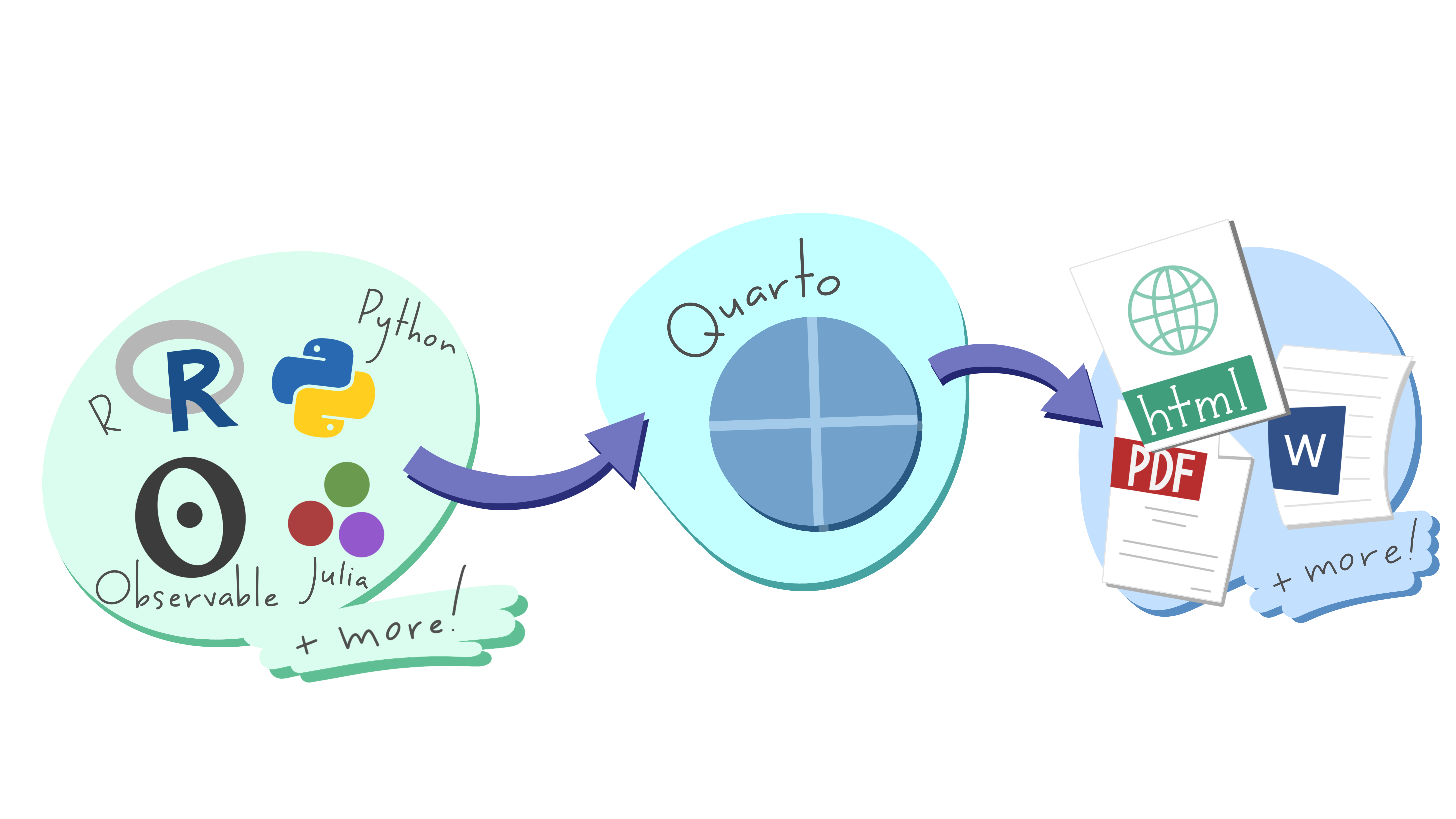
Figure 1: A schematic representing the multi-language input (e.g. Python, R, Observable, Julia) and multi-format output (e.g. PDF, html, Word documents, and more) versatility of Quarto. Artwork from “Hello, Quarto” keynote by Julia Lowndes and Mine Çetinkaya-Rundel. Illustrated by Allison Horst (Source).

Getting started with Quarto

How can you work with Quarto?

You can use one of the following editors:

  • RStudio
  • Jupyter
  • Neovim
  • VS Code
  • Text editor

Creating a Quarto file in RStudio

  1. Download and install the newest version of RStudio
  2. Open RStudio
  3. Create a new .qmd file: “File” > “New file” > “Quarto Document”

Rendering Quarto files

Output formats

  • HTML (standard)
  • PDF (requires LaTeX)
  • Word (requires MS Word)

Presentations

  • reveal.js (HTML)
  • Powerpoint (requires MS Powerpoint)

How to render Quarto files

1. Preview

Code
quarto preview
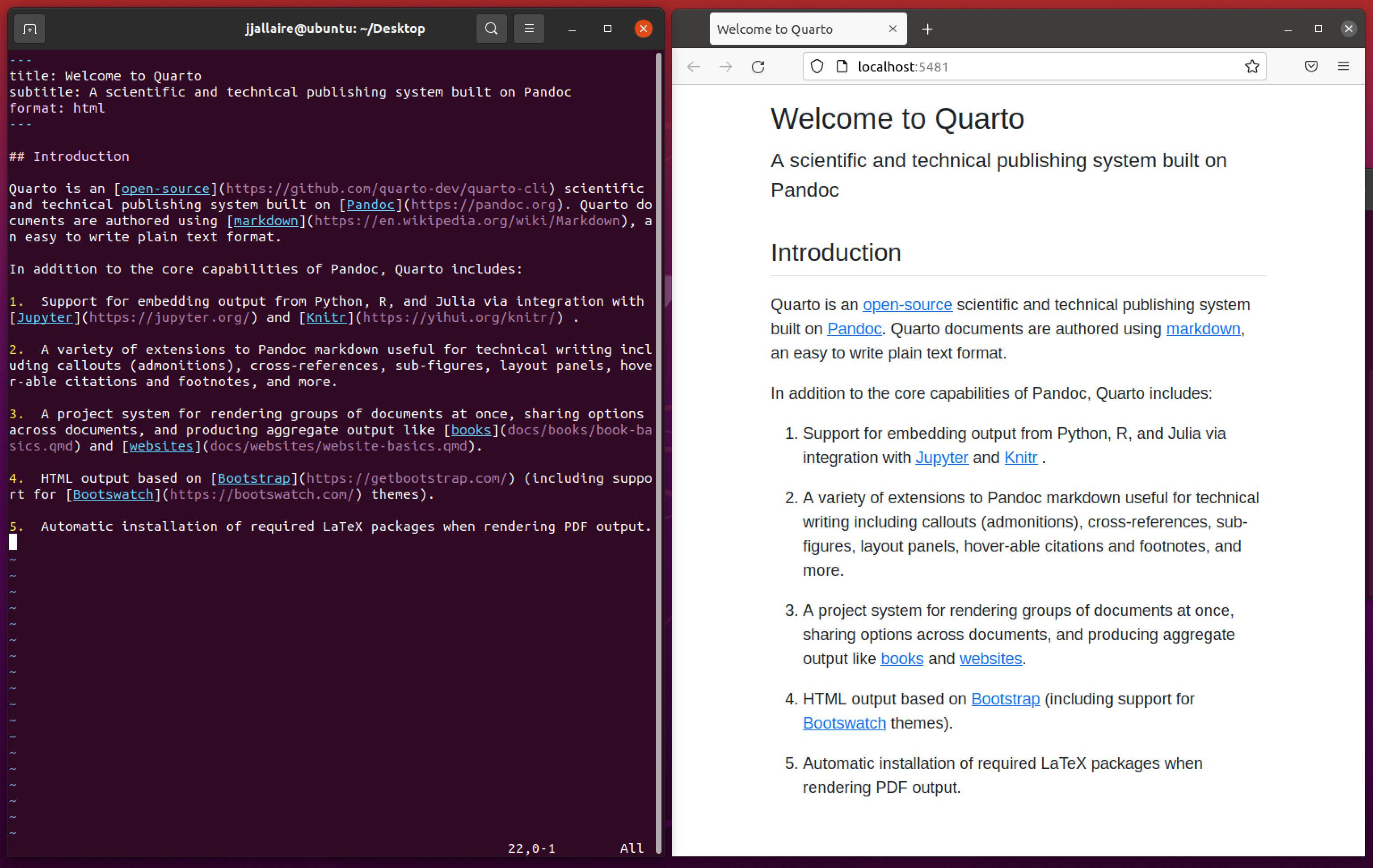
  • The document will be rendered and a web browser with a “live preview” opened
  • Position this browser so that you can see it as you edit and save the document
  • Every time you save, the preview will be updated
  • Windows Users: Note, that quarto preview might not work in Git Bash! Use the Render buttons in RStudio (see right column)

2. Render

Code
quarto render
  • Render a document (or group of documents) without previewing them
  • You can also use the Render button in RStudio and enable Render on Save

Task 1

Getting started with Quarto

  1. Create a new empty Quarto file called my-project.qmd and save it in your my-project repository.
  2. Write a short introduction note to your my-project repository.
  3. Switch between Quarto’s visual and source mode.
  4. Render the file to HTML.

2 Basics of Markdown

Markdown

  • Easy to use
  • “Markup” language
  • Content and formatting are integrated, not separated
  • Alternative to “What You See Is What You Get” (WYSIWYG) editors like MS Word
  • Used by text editors, GitHub (e.g., READMEs), and more
  • Integrated in RStudio as “RMarkdown”

Example: HedgeDoc

Text Formatting

Input Output
*italics* and **bold**
italics and bold
superscript^2^ / subscript~2~
superscript2 / subscript2
~~strikethrough~~
strikethrough
`verbatim code`
verbatim code

Headings

Input Output
# Header 1

Header 1

## Header 2

Header 2

### Header 3

Header 3

#### Header 4

Header 4

##### Header 5
Header 5

Lists

Input Output
* unordered list
  + sub-item 1
  + sub-item 2

  • unordered list
    • sub-item 1
    • sub-item 2
1. ordered list
2. item 2
    1. sub-item 1

  1. ordered list
  2. item 2
    1. sub-item 1
1. ordered list
1. item 2
1. item 3
1. item 4

  1. ordered list
  2. item 2
  3. item 3
  4. item 4

Tables

Input Output
| Right | Left | Default | Center |
|------:|:-----|---------|:------:|
|   12  |  12  |    12   |    12  |
|  123  |  123 |   123   |   123  |
|    1  |    1 |     1   |     1  |

Right Left Default Center
12 12 12 12
123 123 123 123
1 1 1 1

💡 Tip: Use a Markdown table generator

Equations

Markdown Syntax Output
inline math: $E = mc^{2}$
\(E=mc^{2}\)
display math:

$$E = mc^{2}$$
\[E = mc^{2}\]

Blocks

Input Output
> Blockquote

Blockquote

Task 2

Markdown formatting

  1. Add a new entry to the my-project.qmd file.
  2. Format the text by applying at least three types of Markdown syntax.

3 The YAML header

YAML

  • Document settings: YAML sets up document settings like title, author, and output format.
  • Customization: Use YAML for themes and styling.
  • Specify themes: for example, “default” or “morph”

Examples

---
title: "Document title"
author: "Your Name"
theme: vapor
format: pdf
--- 

Task 3

YAML header

  1. Add a YAML header to your Quarto file.
  2. Include your name, a title, an output format (e.g., HTML), and a theme.

4 More Quarto features

Code chunks

  • Executable code: Quarto files support code execution during rendering
  • Code chunks can be interactive
  • Customizable options: Specify various options for code chunks
  • You can also use inline code
  • R code enclosed by: ```{r} code ```

Examples

Input

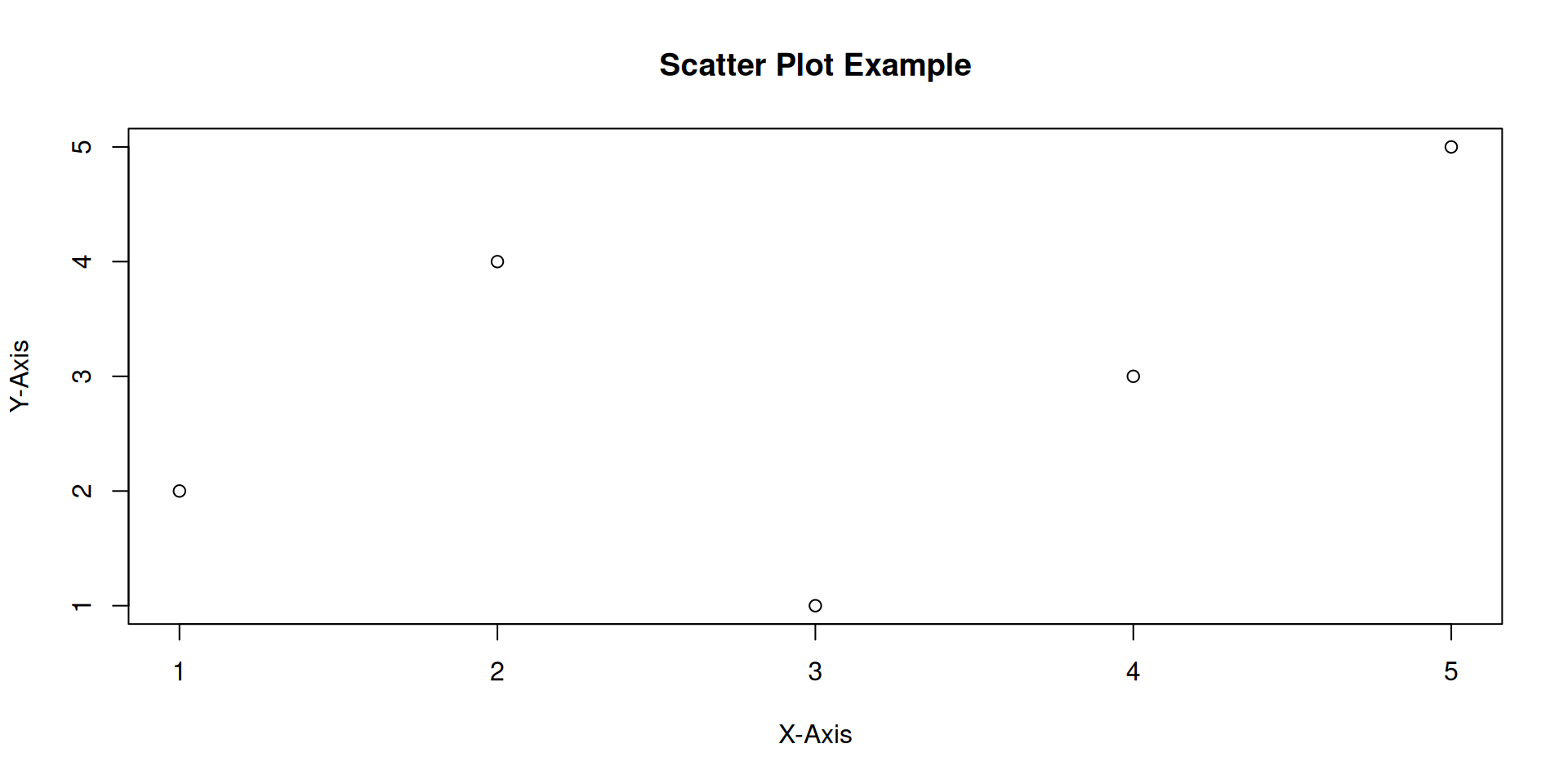
x <- c(1, 2, 3, 4, 5)
y <- c(2, 4, 1, 3, 5)
plot(x, y, main = "Scatter Plot Example", xlab = "X-Axis", ylab = "Y-Axis")

Output

Inline code

Input

Code
Number of observations: `r 8*20`

Output

Number of observations: 160

Referencing

  • You can name and references objects like figures, tables etc.
  • For example: Section 4.4 (@sec-citations)
Type Label Prefix
Figures fig-
Tables tbl-
Equations eq-
Sections sec-
Code listing lst-
Theorem thm-

Citations

  • Citations can be added via Insert > Citation
  • Citations can also be added directly with @
  • References are stored in BibTeX files (references.bib) in your project
Markdown Format Output (author-date format)
Blip blop bloop [@chacon2014].
Blip blop bloop (Chacon & Straub, 2014).
They say blah [-@chacon2014]
They say blah (2014)
@chacon2014 says bloop.
Chacon & Straub (2014) say bloop. |

5 Quarto projects

What is a Quarto project?

  • A Quarto project is a folder containing related .qmd files and configuration files.
  • Projects allow you to manage multiple documents, share resources, and render entire sites or books.
  • Typical files:
    • .qmd files (Quarto documents)
    • _quarto.yml (project configuration)
    • _site/ (rendered output)
    • images/, data/, etc.

Creating a Quarto project

  1. Create a new folder for your project.
  2. Add a Quarto configuration file:
    • Create a file named _quarto.yml in your project folder.

    • Example:

      project:
        type: website
      website:
        title: "My Quarto Project"
        navbar:
          left:
            - href: index.qmd
              text: Home
  3. Add your .qmd files (e.g., index.qmd, about.qmd).
  4. Render the project:
    • In the terminal, run:

      quarto render
    • Or use the Render button in RStudio.

Benefits of using Quarto projects

  • Organize related documents and resources in one place
  • Consistent styling and navigation across all pages
  • Easy to render entire sites, books, or collections
  • Supports collaboration and version control

Example project structure

my-quarto-project/
├── _quarto.yml
├── index.qmd
├── about.qmd
├── images/
│   └── logo.png
└── _site/

6 Variables in Quarto

Why use variables?

Quarto supports variables to help you reuse values throughout your documents and projects. Variables can be defined in YAML files (like _variables.yml), in the document YAML header, or passed at render time.

  • Avoid repetition (e.g., course name, instructor, year)
  • Centralize information for easy updates
  • Use in titles, text, code, and metadata

Defining variables

In a _variables.yml YAML file (recommended for projects):

# _variables.yml
course-title: "FAIR & Open Science Teaching"
instructor: "Dr. Jane Doe"
year: 2026

In a document YAML header:

---
title: "My Document"
myvar: "Some value"
---

Using variables

  • In markdown: {{< var course-title >}} or {{< var myvar >}}
  • In YAML headers: author: "{{< var instructor >}}"

Example

Suppose you have _variables.yml:

course-title: "My Course"
year: 2026

And in your .qmd file:

# Welcome to {{< var course-title >}} ({{< var year >}})

This will render as:

Welcome to My Course (2026)

Resources

References

Chacon, S., & Straub, B. (2014). Pro git. Apress. https://doi.org/10.1007/978-1-4842-0076-6.

7 Questions?

Exercises

Getting started with Quarto

  1. Create a new empty Quarto file called my-project.qmd and save it in your my-project repository.
  2. Write a short introduction note to your my-project repository.
  3. Switch between Quarto’s visual and source mode.
  4. Render the file to HTML.

Markdown formatting

  1. Add a new entry to the my-project.qmd file.
  2. Format the text by applying at least three types of Markdown syntax.

YAML header

  1. Add a YAML header to your Quarto file.
  2. Include your name, a title, an output format (e.g., HTML), and a theme.

Footnotes

  1. The company formerly known as RStudio