Git: Basics

FAIR & Reproducible Teaching with Quarto & Git
Course at University of Hamburg
Slides | Source

License: CC BY 4.0

11:15

Schedule

Day 1

Day Date Time Title
1 2026-03-20 09:30 - 10:00 Welcome & Introduction
1 2026-03-20 10:00 - 10:30 Quarto: Introduction
1 2026-03-20 10:30 - 10:45 Quarto: Presentations
1 2026-03-20 10:45 - 11:00 Git: Setup & Configuration
1 2026-03-20 11:00 - 11:15 Command Line
1 2026-03-20 11:15 - 12:00 Git: Basics
1 2026-03-20 12:00 - 13:00 Lunch Break
1 2026-03-20 13:00 - 14:00 Git: Remotes
1 2026-03-20 14:00 - 15:00 Git: Collaboration
1 2026-03-20 15:00 - 15:30 Quarto: Publication to GitHub Pages
1 2026-03-20 15:30 - 16:00 Git: Tags & Releases

1 Last session

Last session: Learning objectives

After the last session, you should now be able to answer the following questions / do the following:

💡 You know how to set up Git for the first time
💡 You have set up Git on your computer
💡 You know how to configure your username and email address in Git
💡 You understand the difference between the three Git configuration levels
💡 You know how to set up a new RStudio Project for Quarto

Common questions from last session

“How can I enable copy-paste in Git Bash?”

  1. Click on the Git Bash icon in the top-left corner.
  2. Choose Options.
  3. Go to Keys menu.
  4. Enable Copy and Paste (Ctrl/Shift + Ins) option.
  5. Click Apply and Save.

“How do I find the Users folder on Windows?”

  • Use ~
  • If pwd is at /: you can still use cd C:

“The command line does not give feedback!”

  • Yes, I know, I’m sorry …
  • You need to check explicitly if the command had the desired effect.
  • Example: After mkdir my-project, use ls to check if the /my-project folder was created.

2 This session: Git: Basics

Objectives

💡 You can initialize a Git repository.
💡 You can check the status of a Git repository.
💡 You understand the difference between the staging area and a commit.
💡 You can stage and commit changes.
💡 You understand the difference between a commit message and a description.

Reading

First steps with Git (Optional: Git Essentials)

Tasks

In this session, you will work on the following tasks:

  1. Reading: Read the chapter(s) First steps with Git (Optional: Git Essentials) in the Version Control Book.
  2. Implementation: Try out the commands in the chapter.
  3. Exercises: Work on the exercises.

As always:

  1. Try out the commands of this session and play around with them.
  2. Check whether you have achieved the learning objectives.
  3. Ask questions!

Exercises: First steps with Git

Note: There are several terms in these instructions that might be unfamiliar to you, such as “repository”, “stage”, or “commit.” Don’t worry - you will learn about these terms during this session.

First steps with Git

  1. Create a my-project folder and turn it into a Git repository.
  2. Make changes to the files and folders in your project.
  3. Stage and commit your changes to the repository.

Basic Git workflow

  1. Commit at least three additional changes in your files.
  2. Create a .gitignore file
    • Everyone: Create a random file that you want to ignore, for example random-file.docx.
    • Add the random file to the .gitignore file, stage and commit your changes.
    • All macOS users: Let your repository ignore .DS_Store.
  3. 🚀 Make at least one commit using git commit --amend.
    • For example, add file without a title first, commit, then add a title and use git commit --amend to add the title change to the same commit.
  4. 🚀 Optional: Commit .gitkeep in an otherwise empty directory

Quarto and .gitignore

Quarto and RStudio might create a bunch of extra files:

.Rproj.user
.Rhistory
.RData
.Ruserdata
/_site/
/.quarto/

These are temporary or user-specific files and should therefore not be tracked in Git.

  1. Add any file that is not the .qmd file to your .gitignore file.
  2. Stage and commit the changes to your .gitignore file.

3 Appendix

Important notes

Make sure that there is no Git repository in your home directory!

  • Your home directory is at /Users/yourname (macOS) or C:\Users\yourname (Windows).
  • There should be no .git folder in your home directory (check with ls -a; see previous slide).
  • If you find a .git folder in your home directory, don’t do anything and talk to us first!
  • We want to make sure that you don’t accidentally track files in Git that you don’t want to track.

After you open a fresh terminal, you always need to navigate to your repository first!

  • Yes, I know, I’m sorry …
  • Use pwd to check your current location and cd to move to another directory.

Use a Git user.name and user.email that you are comfortable with

  • We will eventually practice to share Git repositories publicly on GitHub.
  • Your user.name and user.email will be part of your commit history.
  • A public repository will therefore reveal your user.name and user.email.

Staging and Committing

Staging:

  • Command: git add
  • Purpose: Preparing and organizing files before they are recorded in the repository’s history.

Committing:

  • Command: git commit -m "commit message"
  • Purpose: Saving the changes in the staged files to the repository’s history, creating a snapshot.
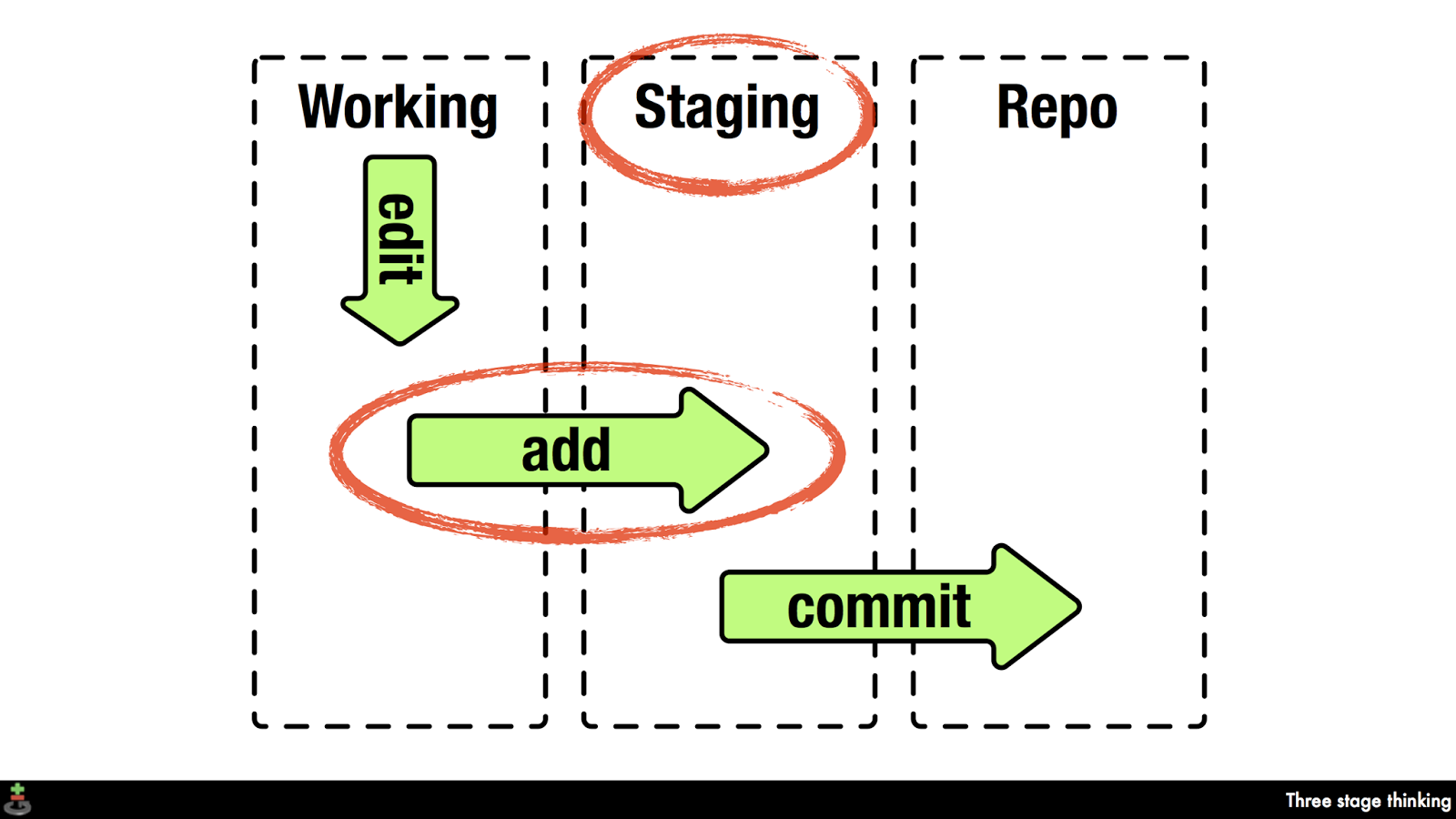
Source: git-scm.com

Source: Heidi Seibold

Saving command line history?

Use this:

history > history.txt

https://lennartwittkuhn.com/version-control-book/chapters/command-line.html#saving-command-line-history

Commit .gitignore?

Yes, commit your project-specific .gitignore file.

https://lennartwittkuhn.com/version-control-book/chapters/first-steps-git.html#ignoring-files-and-folders-.gitignore

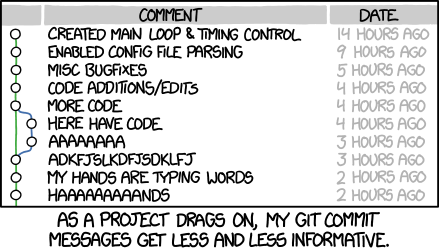
Best practices for commit messages

  • Try to keep commit messages short (less than 72 characters)
  • Use present tense and start with an imperative verb to indicate the purpose of the commit, for example “add”, “fix”, “improve” (as if you are giving orders to the codebase to change its behavior)

If applied, this commit will … [your commit message]

  • Try to describe why a change is being made
  • Link specific issues that are addressed by your commit
  • Use the description for more explanation and context